At Lumo365, we empower organizations to thrive in the modern workplace. As a proud Microsoft AI Cloud Partner, we specialize in transforming how teams connect, collaborate, and perform—no matter where they are.
At Lumo365, we empower organizations to thrive in the modern workplace. As a proud Microsoft AI Cloud Partner, we specialize in transforming how teams connect, collaborate, and perform—no matter where they are.
First time login to your Microsoft 365 is straightforward. The Sign In button is prominently displayed within Microsoft applications for quick and easy access.
You can access the Microsoft 365 sign-in page using either of the following URLs:
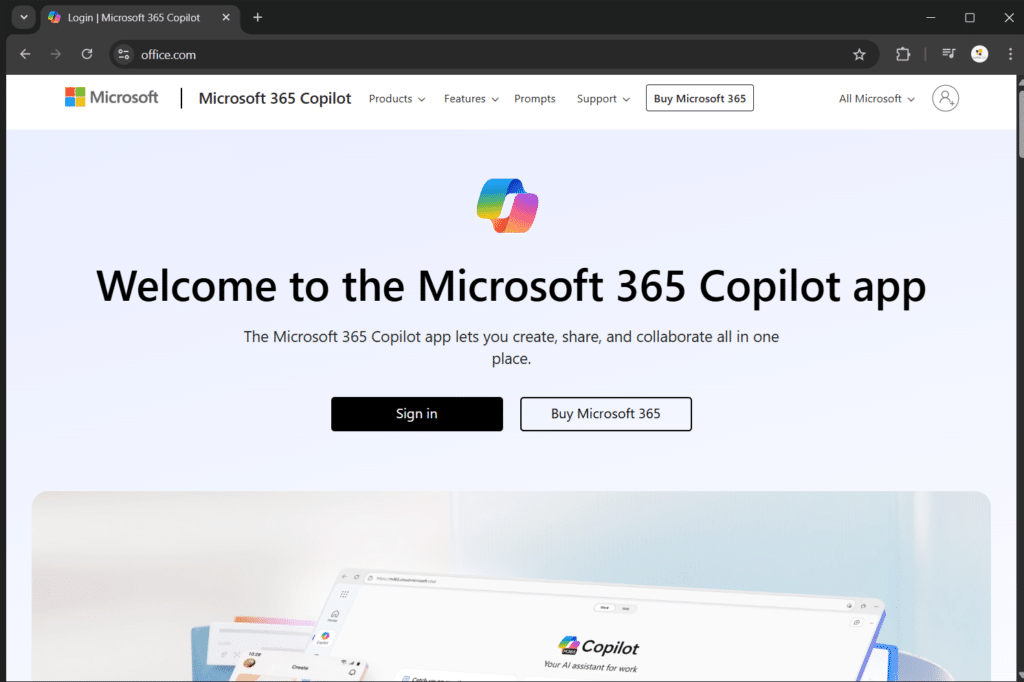
Using the first URL will direct you to the standard Microsoft 365 sign-in page, as shown below.
Clicking the Sign in button will redirect you to the Microsoft 365 authentication gateway.
Tip: Save your Microsoft 365 sign-in URL—whether it is the standard page or your organization’s customized link—as a browser bookmark for quick and convenient access in the future.
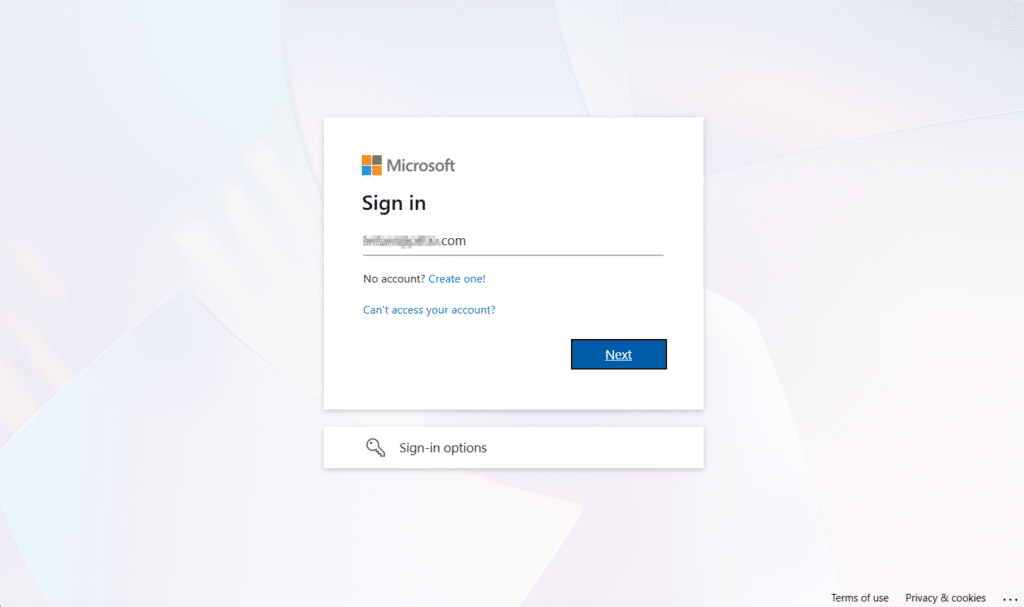
To begin, enter the email address associated with your Microsoft 365 account and select Next. This username allows Microsoft to identify your account and connect you to the appropriate services. If your organization uses a branded portal, it will appear after you enter your email address.
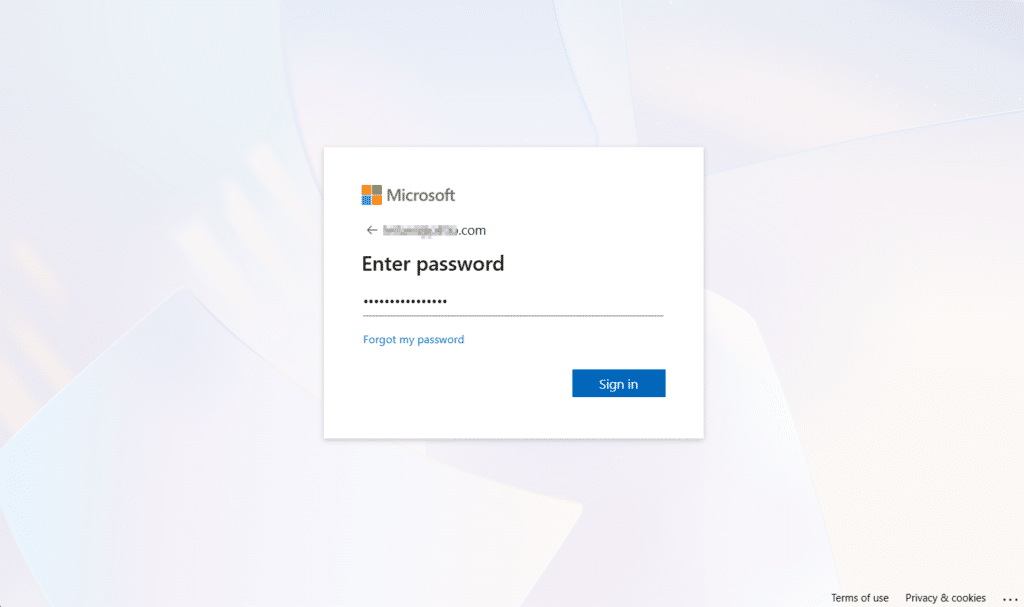
Enter the temporary password provided by your IT/admin, and click Sign In > click Next
Set up MFA (Multi-Factor Authentication)
Multi-Factor Authentication (MFA) is a security feature that protects user accounts by requiring more than one form of verification during sign-in. Instead of relying only on a password, MFA adds an extra step such as approving a notification in an authenticator app, entering a one-time code sent to a phone, or using a security key. This additional layer of protection helps prevent unauthorized access, even if a password is stolen or compromised, and is widely used by organizations to reduce the risk of phishing, account breaches, and identity theft.
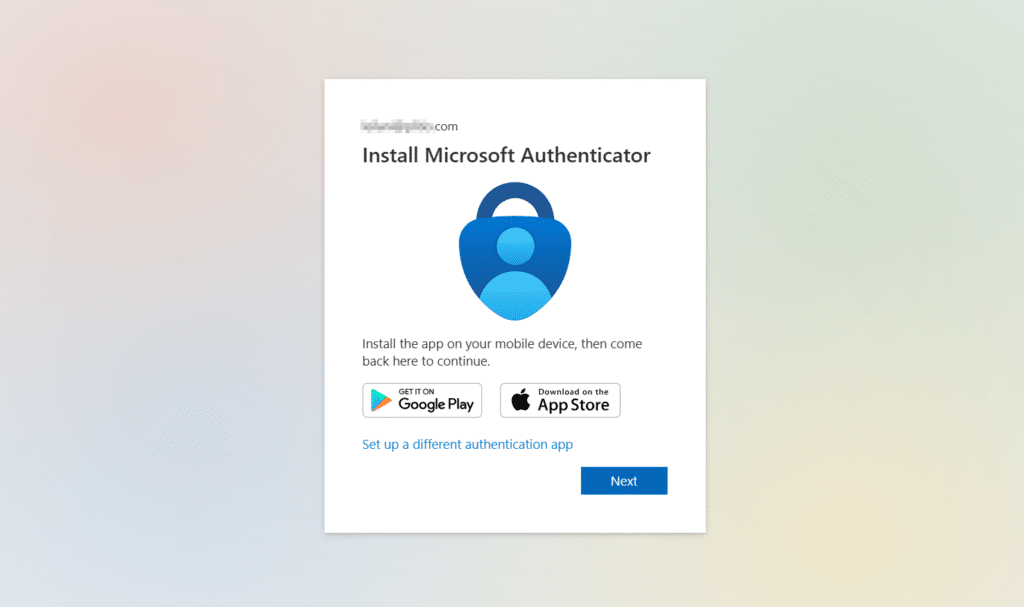
On your mobile device, Install Microsoft Authenticator from the App Store or Google Play
After successfully installing the Microsoft Authenticator, click Next > click Next
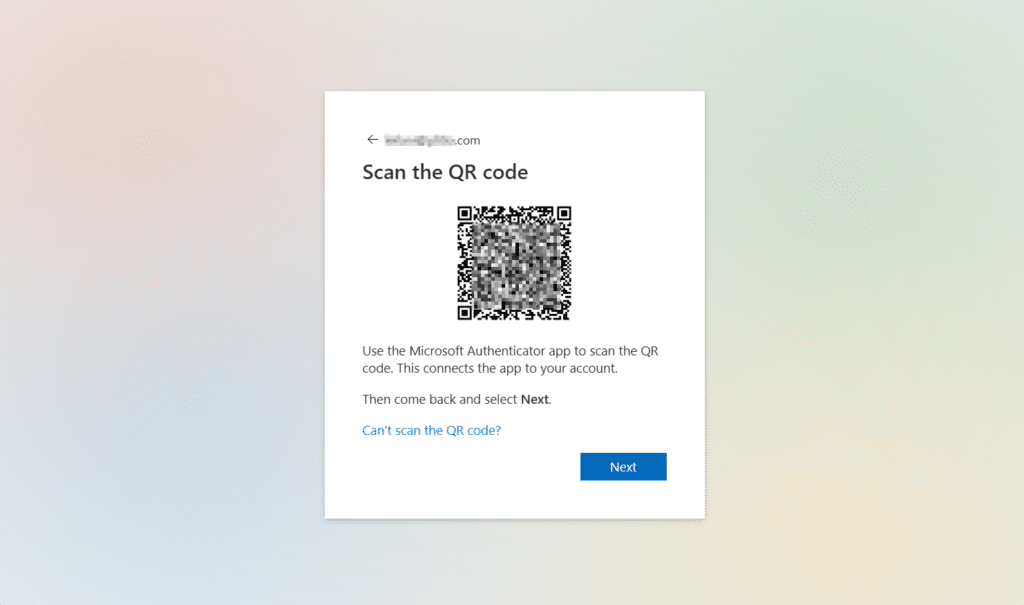
On your mobile device, open the Microsoft Authenticator app. Tap Scan QR code (located at the bottom-right of the screen), then use your phone to scan the QR code displayed on your computer. Once the scan is successful, click Next to continue.
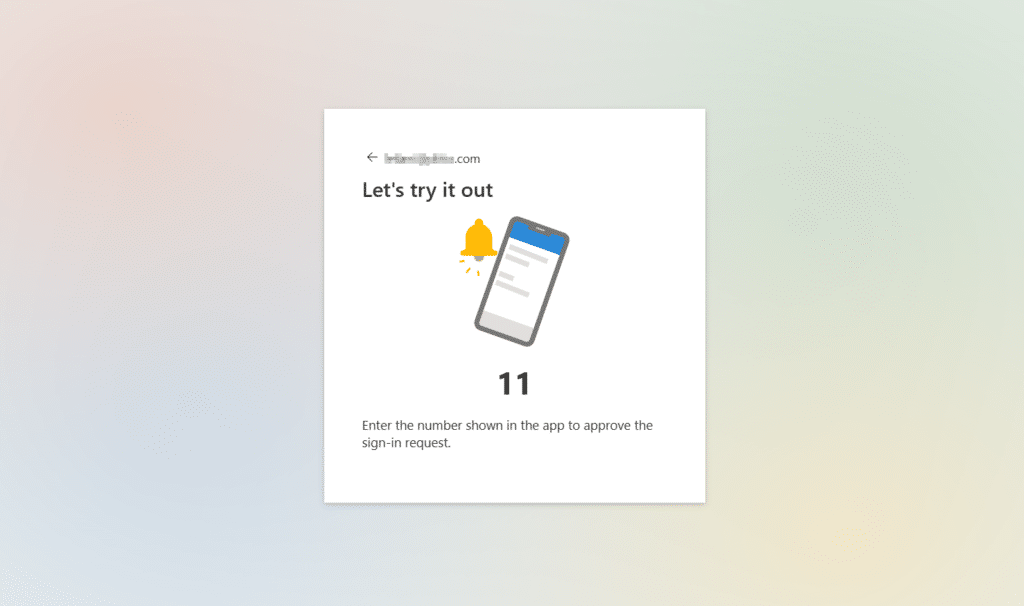
On your mobile phone, enter the number displayed on the screen (for example, 11) to approve the sign-in request., and click Done
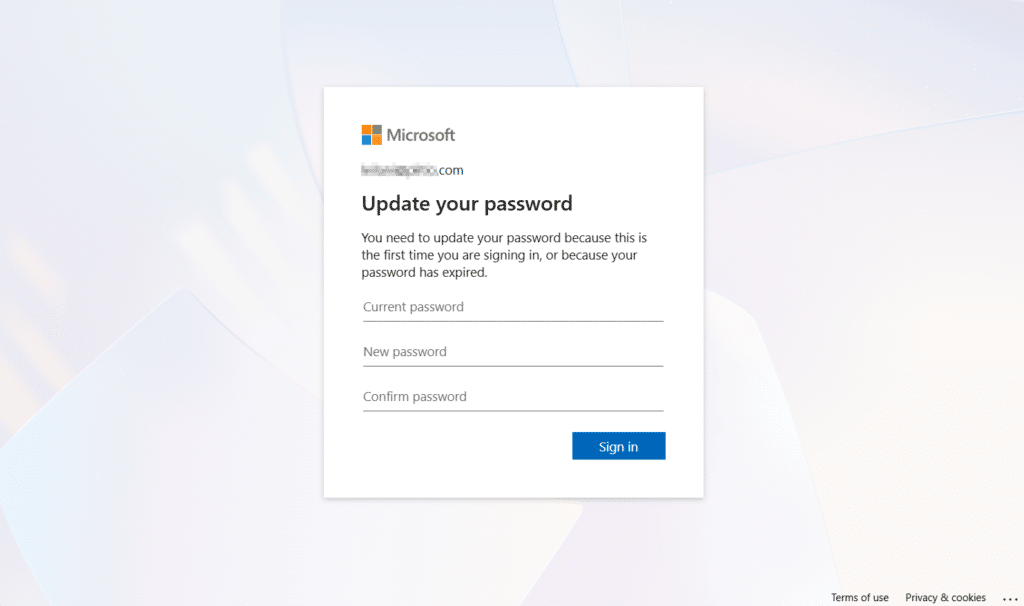
You must update the temporary password provided by the Admin/IT team because this is your first time signing in, type your Current Password (Temporary Password), New/Confirm password, and click Sign in.
Tips for Creating a Strong Password: Use at least 12 characters and include a mix of uppercase and lowercase letters, numbers, and special characters (such as ! @ # $). Avoid common words, names, or personal information, do not reuse passwords from other accounts, and consider using a passphrase made up of several random words for better security and easier recall.
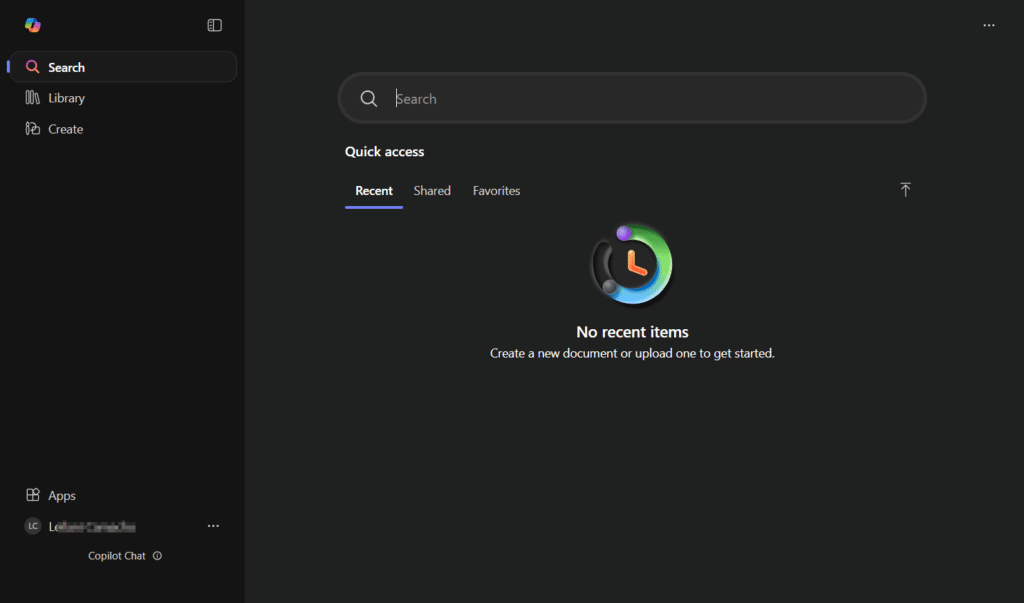
You are now logged in to the Microsoft Office 365 portal. This portal provides secure access to Microsoft applications and services such as Outlook, Microsoft Teams, OneDrive, Word, Excel, and SharePoint, allowing you to work, communicate, and collaborate from one central location.
Steps to Open Outlook or Microsoft Teams from the Portal
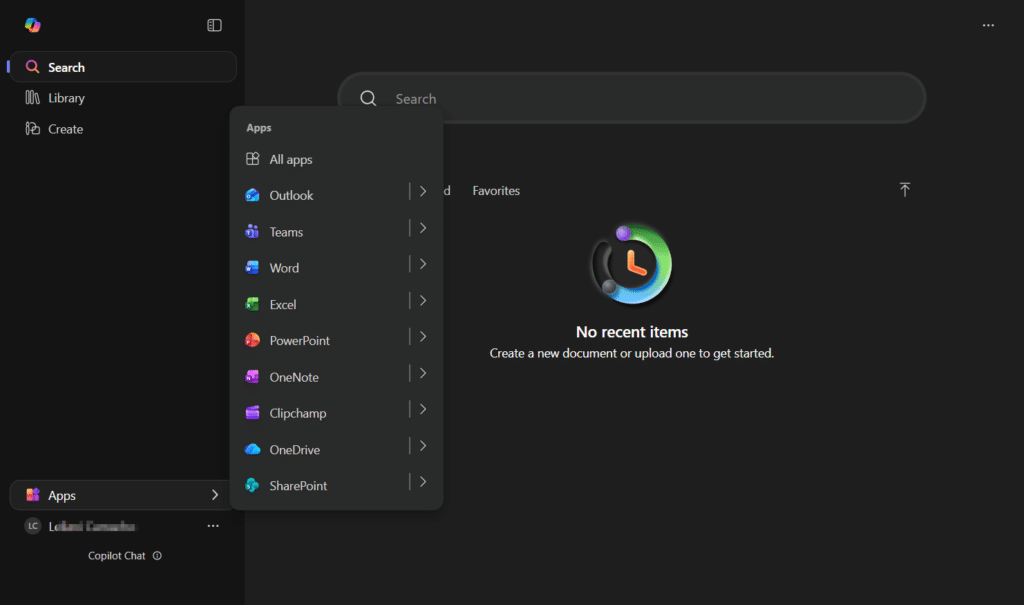
From the Office 365 home page, select the Apps (the grid icon) in the bottom-left corner.
Click Outlook to access your email and calendar, or select Microsoft Teams to start chats, meetings, and collaboration.