Migrate Google Workspace to Microsoft 365
Secure. Seamless. Zero-Stress Migration.
Lumo365 helps organizations confidently migrate from Google Workspace (G Suite) to Microsoft 365 with zero data loss, minimal disruption, and predictable outcomes.
Our end-to-end migration service ensures your users, data, and collaboration tools move smoothly—so your teams can start working in Microsoft 365 immediately.
We handle everything from Gmail, Google Drive, and Shared Drives to Calendars, Contacts, and permissions, delivering a secure, compliant, and fully managed migration experience.
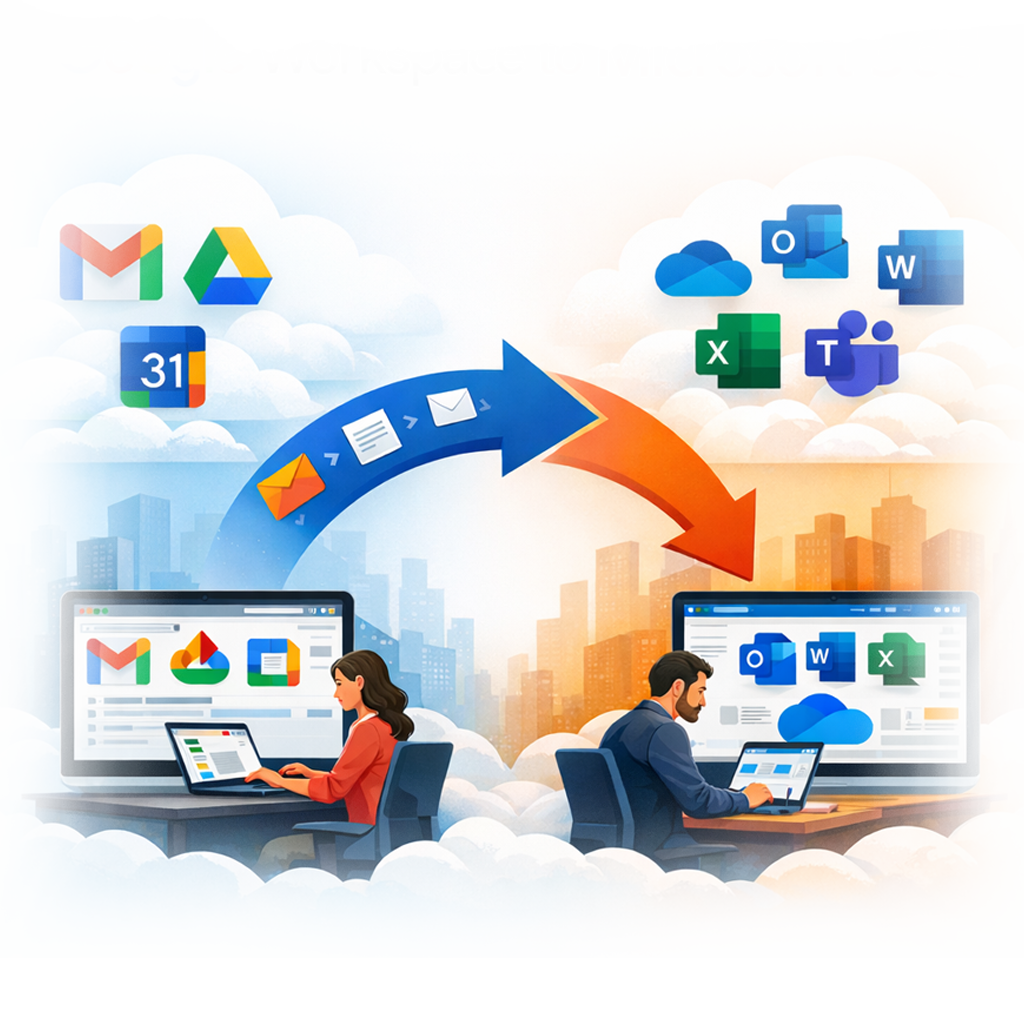
Supported Migration Paths to Microsoft 365
Lumo365 supports full-scope Google Workspace migrations, ensuring all critical workloads are transferred accurately and securely.
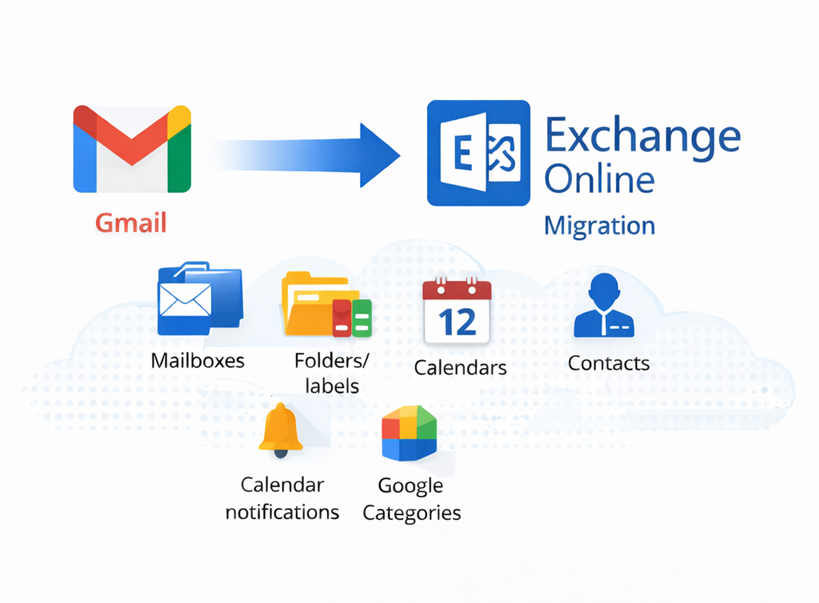
Gmail to Microsoft 365 (Exchange Online)
Lumo365 delivers a precise, secure, and disruption‑free migration of your organization’s Gmail environment into Microsoft 365’s Exchange Online platform. Our process ensures that all essential mailbox data, organizational structure, and user-specific settings
What We Migrate?
We move all core Gmail mailbox components to Exchange Online, including:
- Emails (inbox, sent items, drafts, archived mail)
- Folders & Labels (mapped intelligently to Outlook folders)
- Muted emails (migrated as standard emails)
- Contacts and personal address books
- Calendars
- Google Category flags
- Snoozed & scheduled emails (migrated as regular messages)
What’s Not Migrated
Certain Google-specific data cannot be transferred into Microsoft 365 due to platform limitations. These include:
- Calendar reminders/alerts
- Google Spaces and Spaces chats
- Chat history and chat attachments
- Appointments created in Google Chat
- Google Groups for Business
- Calendar attachments and calendar permissions
- Client-side Outlook/Google rules
- Automatic replies
- Email attachments that link to Google Drive
Technical Considerations
Gmail labels become Outlook folders; items with multiple labels may create multiple folder copies (depending on method).
Google Colors and Categories transfer as metadata but do not map 1:1 to Outlook’s color categories.
Contacts inside Google “Contact Groups” migrate to the main Contacts folder; groups become folders but will not retain grouping.
Multiple calendar owners (“Make changes & manage sharing” permissions) can cause shared calendars to migrate to multiple users by design.
Migration service accounts cannot use MFA/2FA, SSO, app passwords, or ADFS—a standard limitation with Google API migrations.
Maximum supported item size for migration tools is typically up to 60 GB per item, depending on mailbox and tool limits.
Google Drive to OneDrive for Business
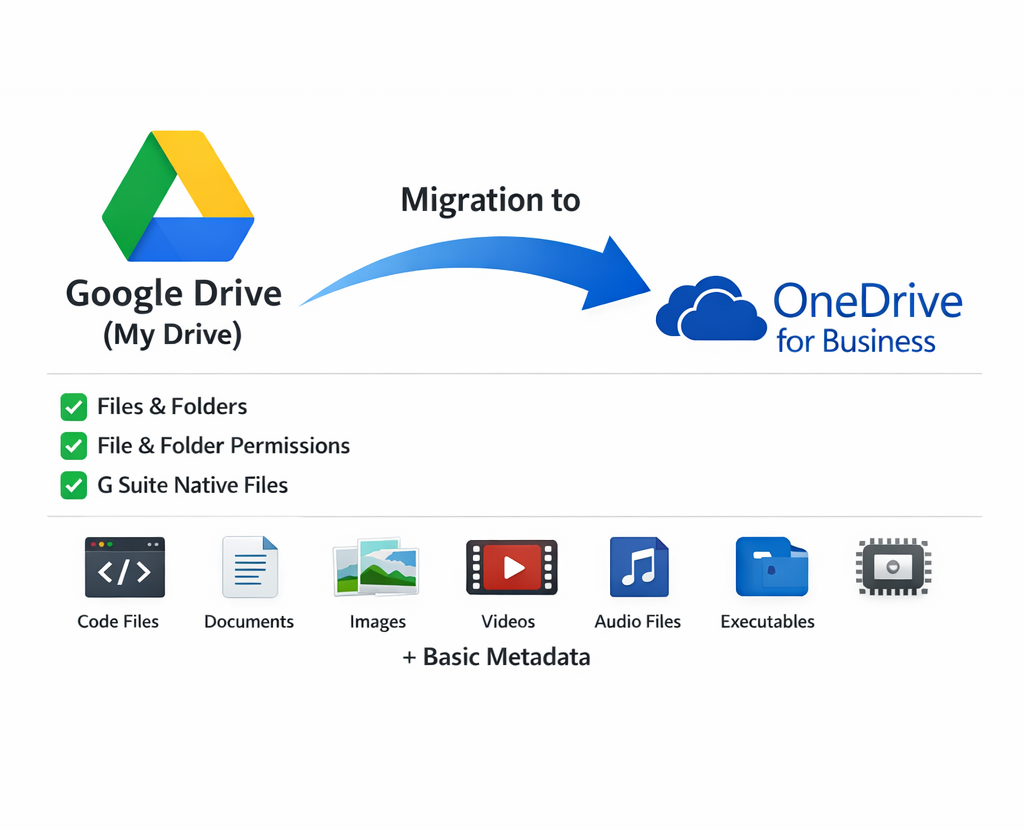
Lumo365 delivers a secure, structured, and seamless migration of your organization’s Google Drive (My Drive) content into Microsoft 365’s OneDrive for Business. Our modern migration process ensures that your users’ files, permissions, and folder structures are accurately transferred—so they can begin working in Microsoft 365 immediately without disruption.
What We Migrate?
We migrate all essential business‑critical content from Google Drive into OneDrive for Business, including:
- Files & Folders (full folder structure preserved)
- Shared folders and supported permissions
- Google Workspace native files (Docs → Word (.docx), Sheets → Excel (.xlsx), Slides → PowerPoint (.pptx), Drawings → .jpg (non‑editable), Forms → .zip (HTML + CSV), Jamboard → .pdf (non‑editable))
- Comments (where supported after format conversion)
- File metadata (name, modified/created dates where supported)
Note: Due to platform behavior, some creation dates may reflect the date of migration, not the original date
What’s Not Migrated
Certain Google‑specific or unsupported items do not transfer into OneDrive:
- Items in “Shared with me”
- File/folder shortcuts
- Google Photos
- Personal/free Google Drive accounts
- Advanced Google‑only file metadata or link-sharing states (“anyone with the link”)
From Smooth Migration to Happy Users
Our proven migration approach ensures:
No lost data
No broken permissions
No frustrated users
Your team moves into Microsoft 365 confidently—organized, secure, and ready to collaborate.